Before and during the exam
Make your own exam, or bring the one you already give.
Then run it.
Admin Phase is where you make an exam or bring an existing one, then run the sitting. Build or import your paper, review it, then follow the class from the live board.
Bring your exam
Questions, pictures and passages.
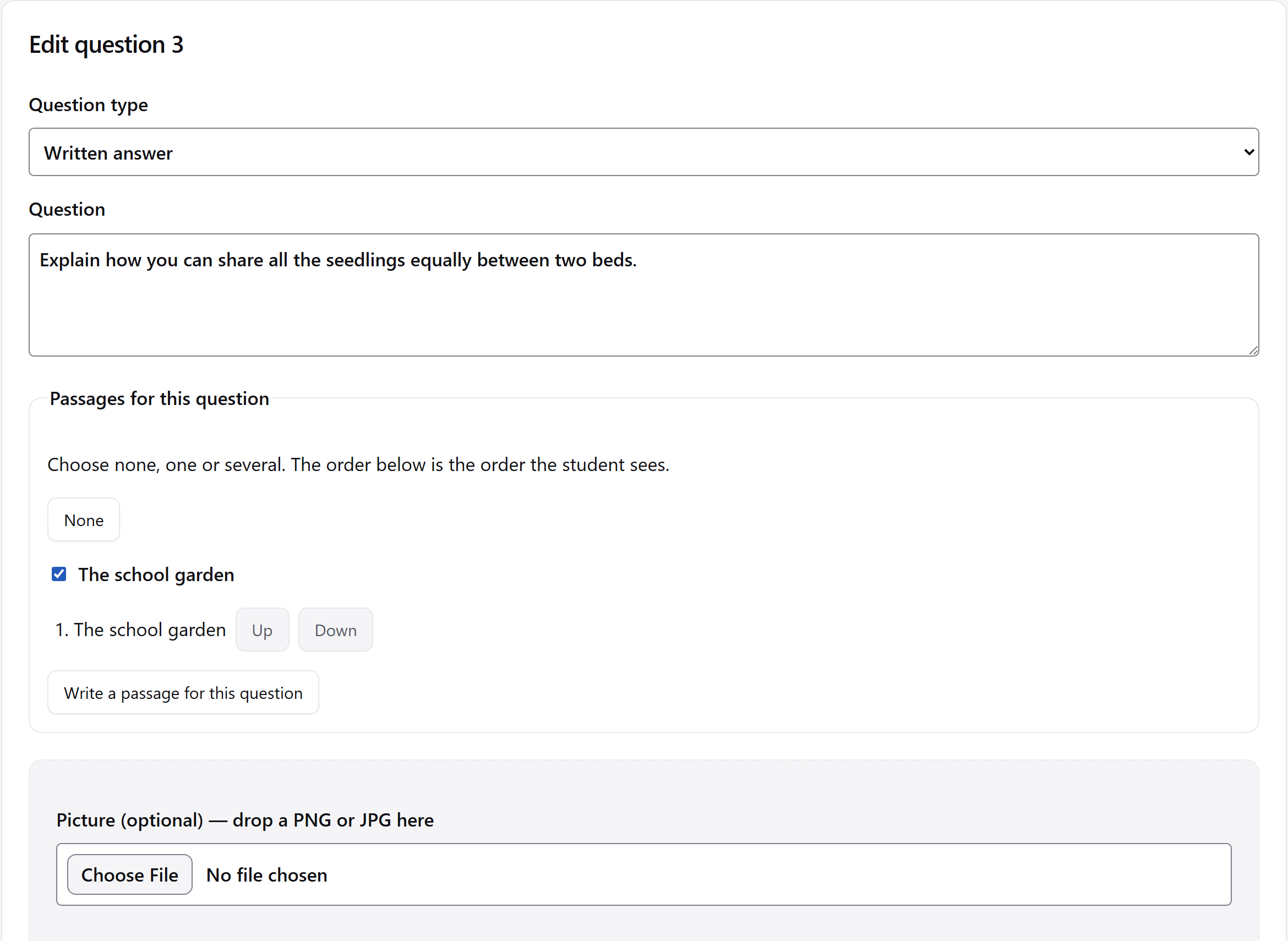
Enter your paper with the builder, at about thirty seconds a question in practice, or import a spreadsheet with one row per question. Multiple-choice, number and written answers can sit alongside passages, poems and pictures.
Review and seal
Read the question. Check the key.
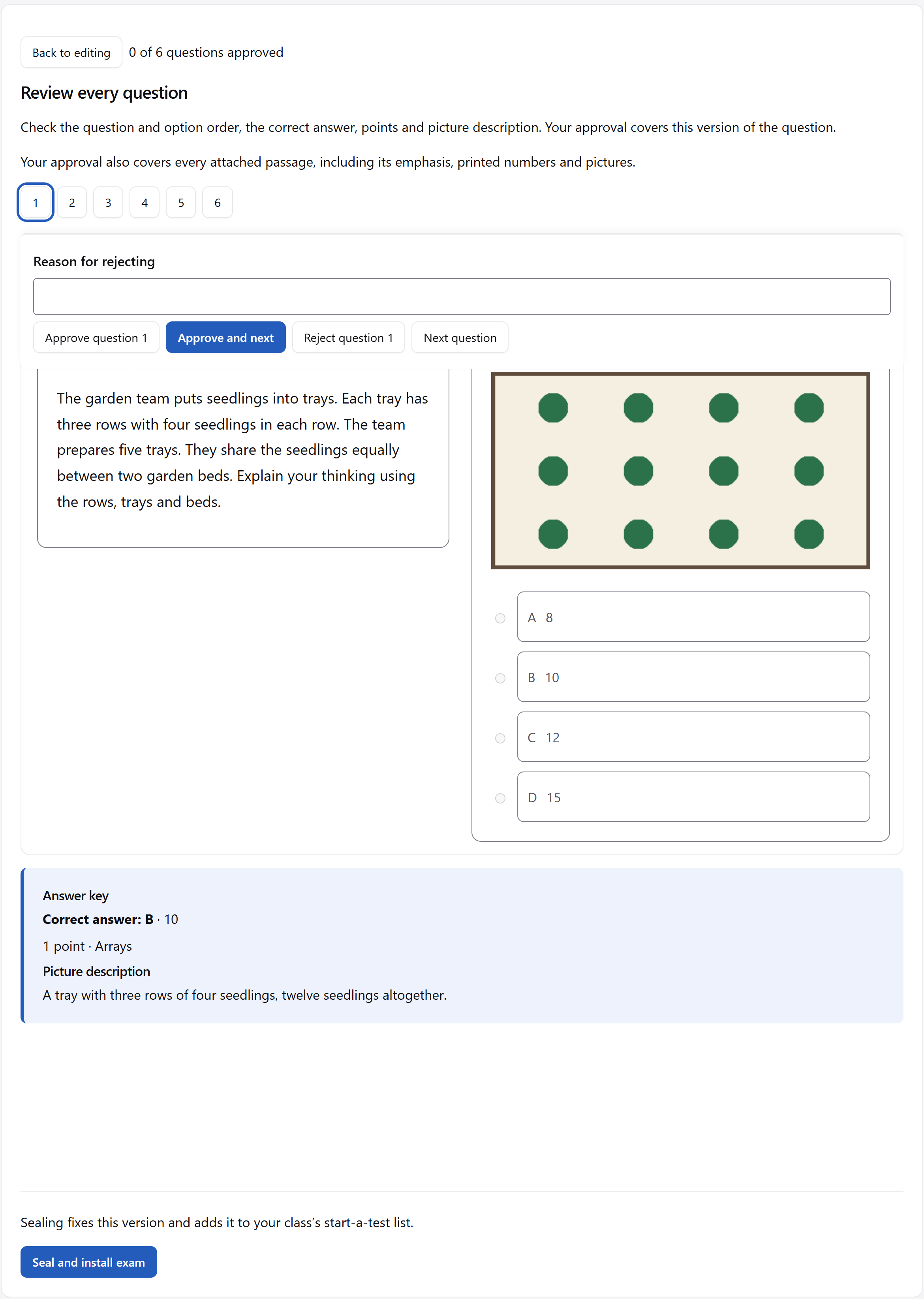
Review shows each question as students will see it, with the answer key beside it. Sealing fixes the exam so the class receives the same paper.
A sealed exam can be shared with another teacher as a file. Export it after sealing to pass on the reviewed paper.
Prepare the class
Your class, ready for the sitting.
Create a class and choose the names to add to its roster. Grade and year are optional.
Choosing names for your rosterSet the movement and order
Choose how the class moves through the paper.
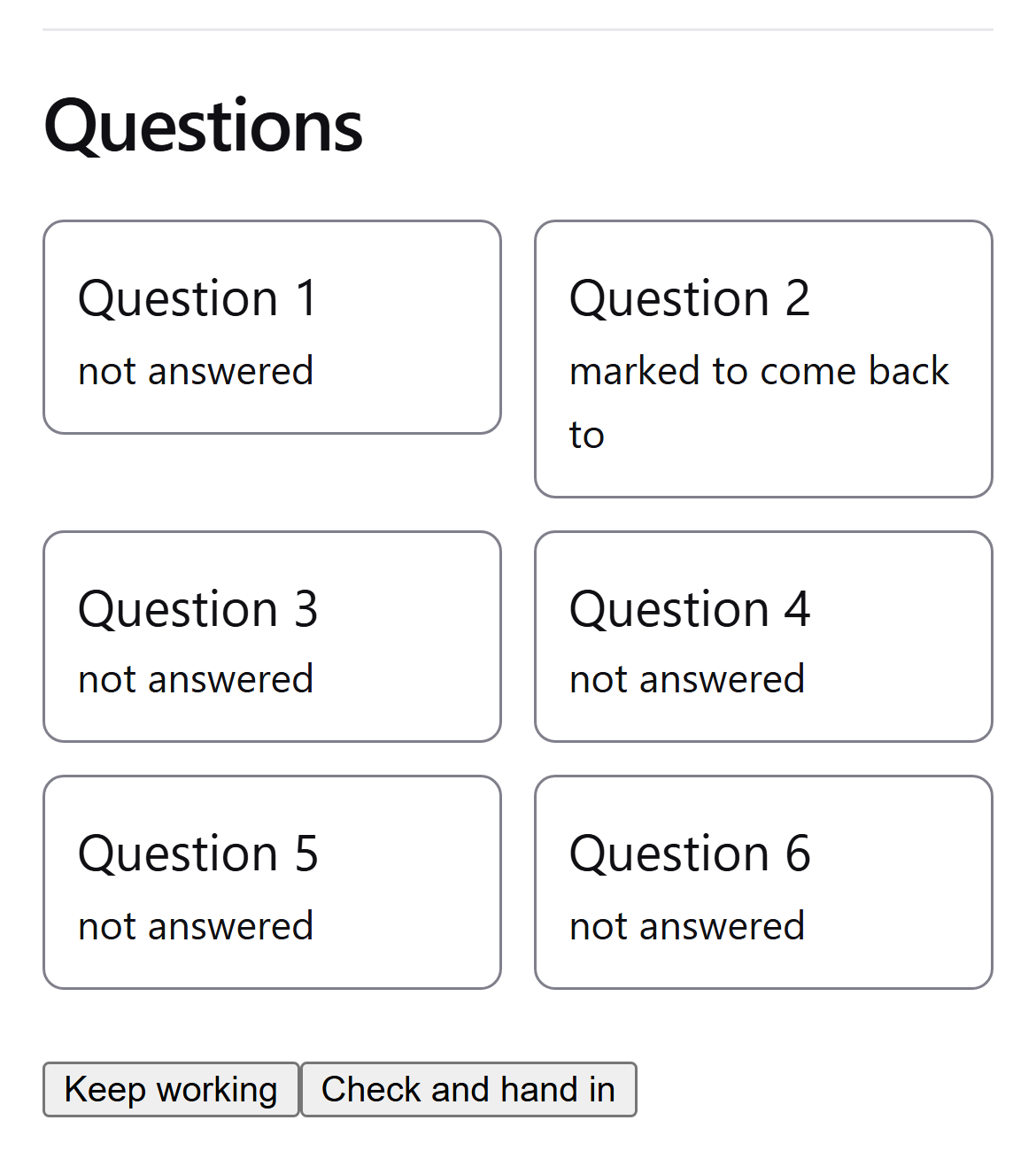
On Start a test, choose free movement for a question list and answers students can revise until they hand in, or forward only to make each answer final as they go.
Keep the paper’s order, or choose a different question order for each student. Passage blocks stay together, and results keep the paper’s numbering.
Time for the sitting
A duration or an end time.
Set a duration from each student’s own start, or a fixed end time for the room. The choice determines how the sitting’s time is measured.
Time can be extended for one student or for everyone, and is never shortened. Every extension is logged.
Invite the room
Put the join details on the wall.
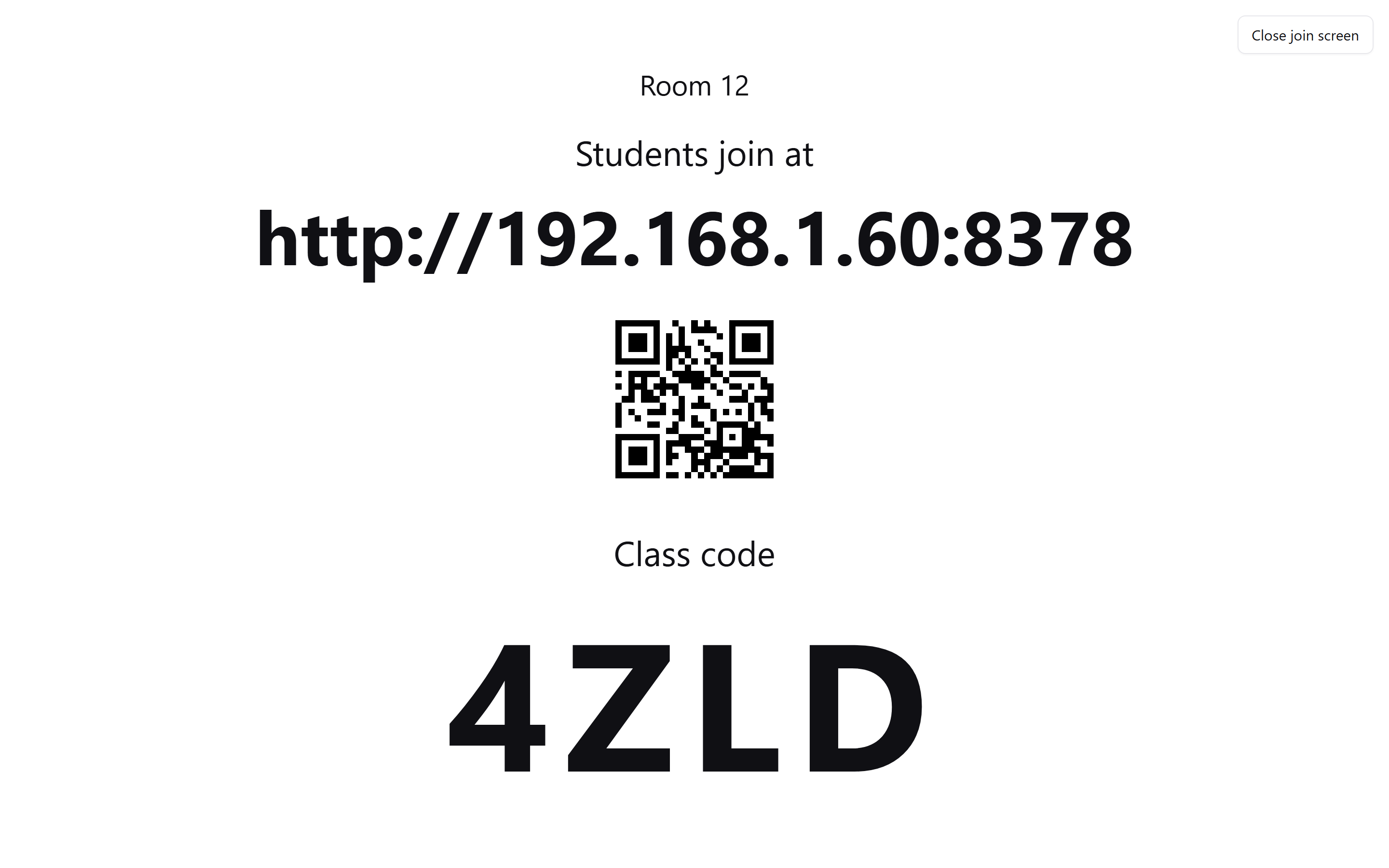
The wall screen displays the address, class code and QR code in large type. Students on the same network open the address or scan the code to join.
The live board
See who has joined. Follow their progress.
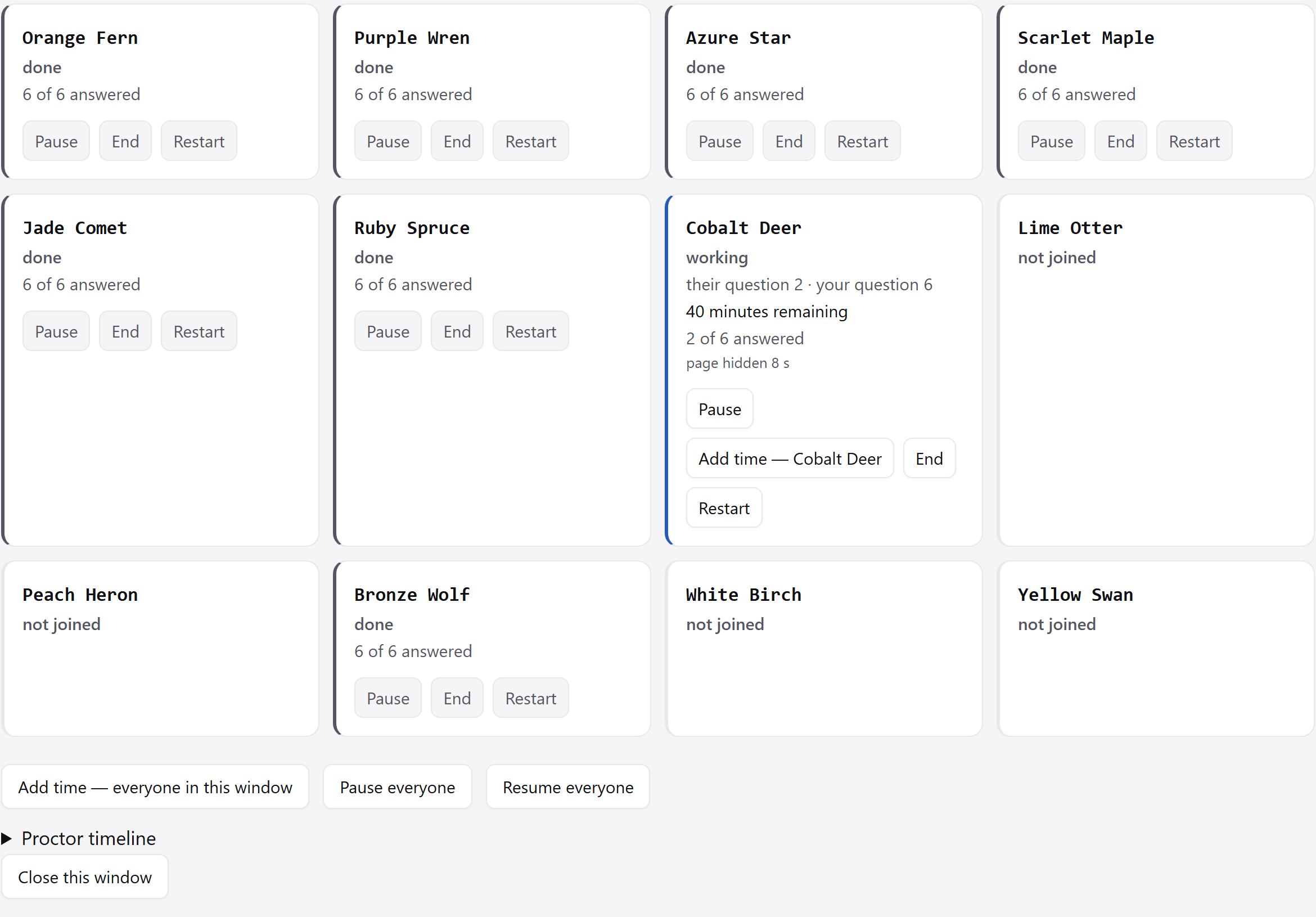
The board shows who has joined, is working, is paused or has finished. With free movement, each tile counts saved answers.
With different question orders, their question 3 · your question 7 means the student is at their third position, on question seven of your paper.
The board may trail a change by up to one second. Pause, resume, end or restart an attempt from its tile; a restart keeps the earlier attempt in history.
If a name is tapped on a second device while the first is testing, the teacher decides the move. The second device asks the student to speak to the teacher.
The board flags every departure from the exam page: hidden, unfocused or leaving full screen. In a lab it also shows the station beside the student’s name.
From a paper to a sitting.
Review and seal the exam before opening it for your class. Choose the sealed paper in Start a test, then open the sitting.